1> Create a database Connection EX: AKDEV
> Connections Navigator
> Connection > New Database Connection

> Click on Next and give the Connection Name

> Provide the database access details and check 'Deploy Password'


> Create a new workspace
> Applications Navigator
> Applications > New OA Workspace...

Note: Directory name will be defaulted based on your JDEV_HOME environment variable setting

(Ex: XXHWOAProject
: xxhw.oracle.apps..per.nic.schema.server -- please follow the naming convention)

> Choose the database connection created above


Note: Responsibility should be attached to the user.

> Done with Project wizard

> Update Project property
> Oracle Applications > Run Options > OaDeveloperMode and OADiagnostic

> Now we will create an Entity object to the project created
> New > Business Tier > ADF Business Components > Entity Objects


> Provide entity name (xxhwhrnicEO), package (xxhw.oracle.per.nic.schema) and
database Object (hw_custom.xxhw_hr_nic_data)
***Sometimes database schema name and schema object field is not enabled.
Do the following steps:
1. Before trying to create the EO, first open New > Business tier > ADF Business Components > Business Components from Tables.
2. Click OK and it will ask you to connect.
3. Connect and then cancel out of the wizard and try again.


> Make any column as primary key else by default it will make rowid as primary key

> Select Generate Java File under Entity Collection and Entity Object class
and Accessors, create method and Remove Method

> Lets create a View object (xxhwhrnicVO) in this wizard only in
package xxhw.oracle.apps.per.nic.server

> Done with EO


> Adding an Application Module (xxhwhrnicAM)
> Project > New > Business Tier > Application Module

Package as same as the VO xxhw.oracle.apps.per.nic.server

> Attach the above created VO to the AM


> Select Generate Java Class for AM Class and done with AM


>> We will create a search page now
> Project > New > Web Tier > OA Components > Page
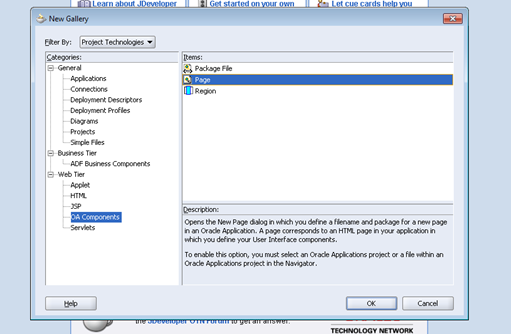
> Page name (xxhwhrnicPG) under package (xxhr.oracle.apps.per.nic.webui)

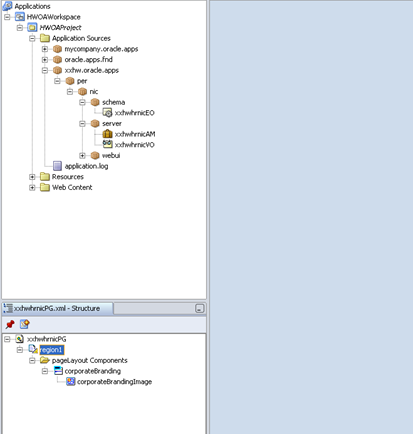
> Change ID (PageLayoutRN) and AM definition (Above Created AM),
Window Title and Title (Ex: National Insurance Contribution) of the page

> Now add Query region and Result table
> Page > New > Region

> Change ID(QueryRN) Region Style(query) and Construction Mode(ResultsBasedSearch)

> Create New region using wizard to the QueryRN

> Select AM and VO

> Select region style as 'Table'

> Select appropriate columns from table
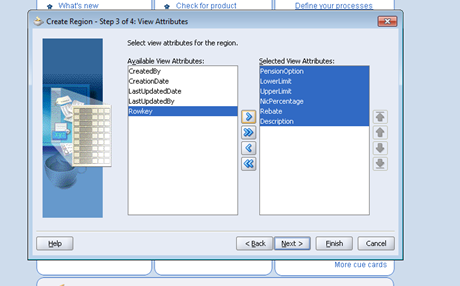
> Change Prompt and style
>> Change style to messagestyledtext if you want to make the column
un-updatable, else messageTextInput

> Finish


> Make the changes for columns for search Allowed/sort allowed

> Now compile the page

> It may give error for who columns methods missing in EOImpl class like below
Error(17,14): class xxhw.oracle.apps.per.nic.schema.xxhwhrnicEOImpl should be declared abstract; it does not define method setLastUpdateLogin(oracle.jbo.domain.Number) of class oracle.apps.fnd.framework.server.OAEntityImpl

> Add below codes to EOImpl java file (xxhwhrnicEOImpl.java)
public void setLastUpdateLogin( oracle.jbo.domain.Number n ) {}
public void setLastUpdateDate( oracle.jbo.domain.Date n ) {}

> Save all and run the page again


